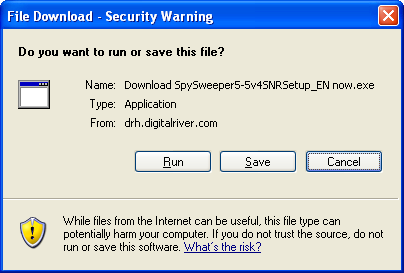
| Step One. In the File Download dialog box press Run to get Download Manager for Spy Sweeper. | |
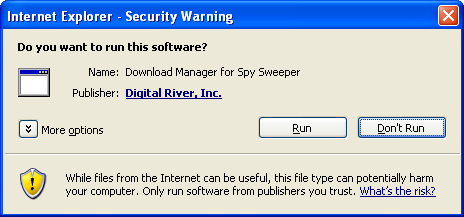
| Step Two. In the Security Warning dialog box press Run - Digital River Inc is a trusted publisher. | |
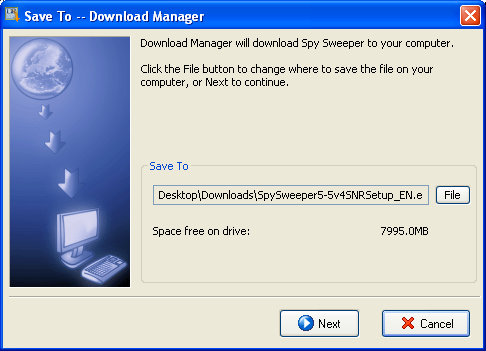
| Step Three. After Download Manager has been downloaded, select Next to start Spy Sweeper download. | |
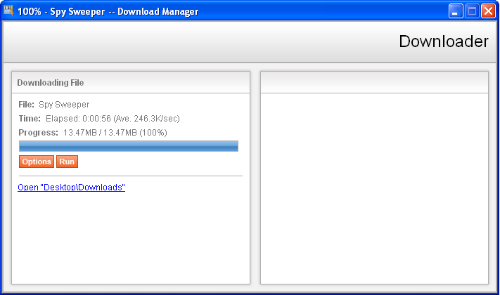
| Step Four. This is Spy Sweeper download process with Download Manager. After downloading progress has reached 100%, press Run button. | |
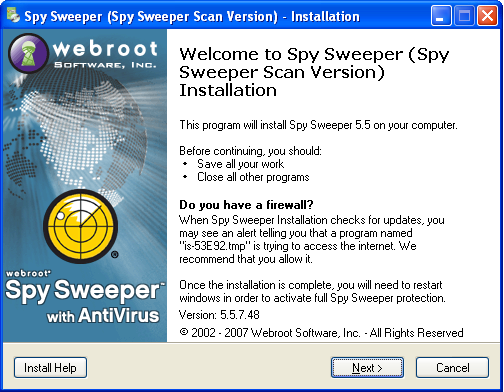
| Step Five. Before hitting the Next button, save all your work and make sure all other programs are closed. | |
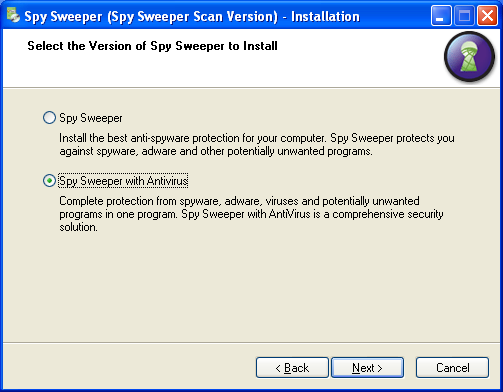
| Step Six. Select the version of Spy Sweeper to install. It is recommended to install Spy Sweeper with Antivirus for the protection against spyware, adware, viruses and potentially unwanted programs. | |
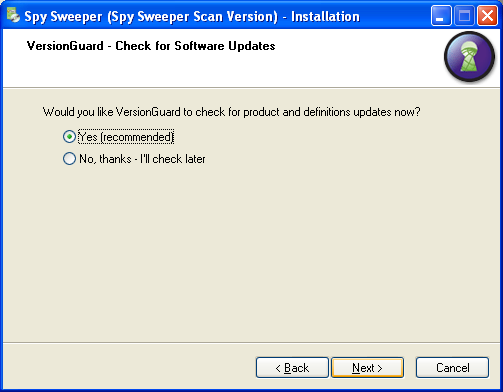
| Step Seven. Choose whether you want to check for software updates or not: select Yes in order to check for the updates, and No - otherwise. It is recommended to check for the updates during the progress of installation. | |
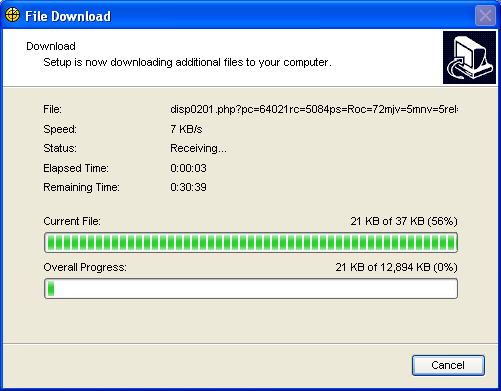
| Step Eight. Wait for the updates download to finish. | |
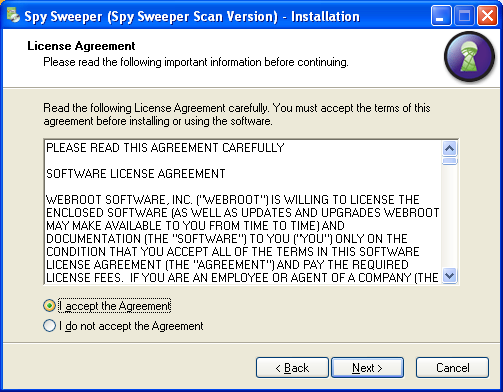
| Step Nine. Select I accept the Agreement and hit Next | |
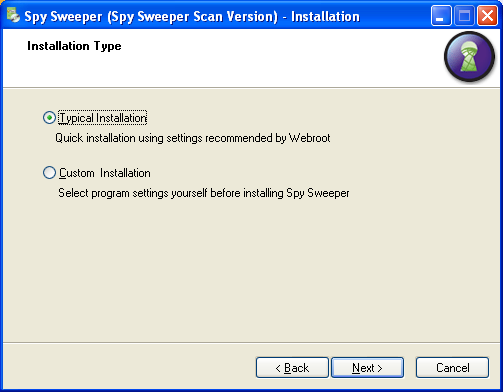
| Step Ten. Select Typical Installation for the quick installation using settings recommended by Webroot. | |
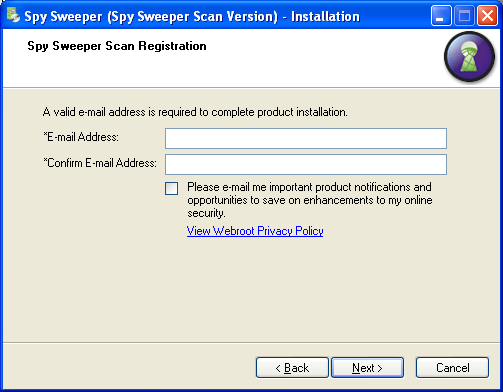
| Step Eleven. In the empty fields please enter a valid e-mail address. | |
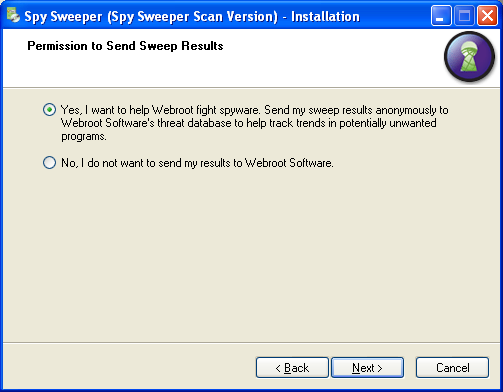
| Step Twelve. If you want to help Webroot fight spyware, please select Yes. Your sweep results will be anonymously sent to Webroot Software's threat database. | |
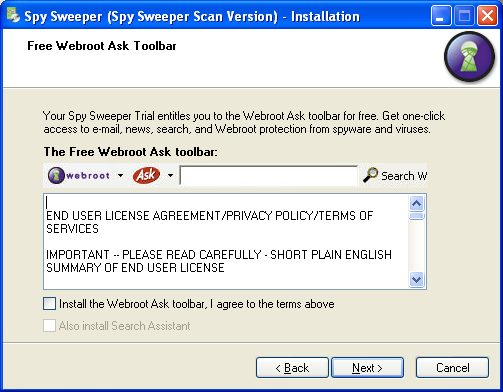
| Step Thirteen. If you do not wish to have additional Webroot Ask toolbar, please uncheck the boxes and press Next. | |
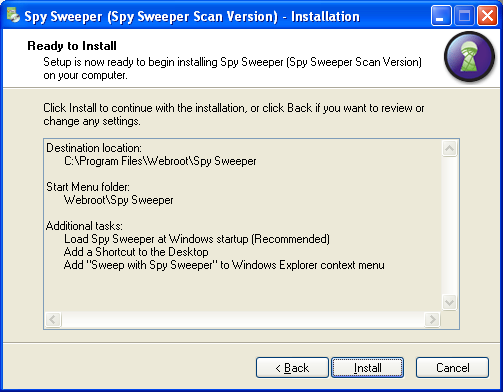
| Step Fourteen. Click Install to begin Spy Sweeper Installation. | |
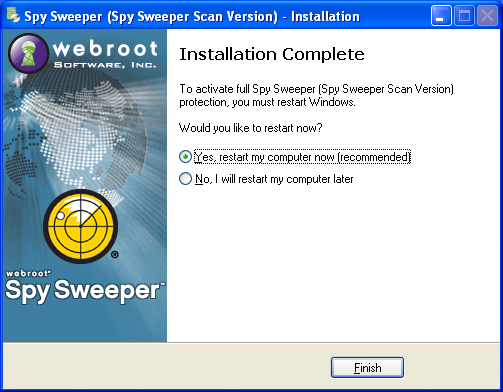
| Step Fifteen. Congratulations! Spy Sweeper is already on your system. To finish the installation restart the computer. | |